
What custom fields cover
One goal: the personnel details your industry needs – defined once, consistent everywhere.
Self-defined
Create fields in Settings – six field types, free ordering.
Required fields
Fields marked as required are enforced on save.
On every profile
New fields appear automatically for all employees.
In lists & exports
As columns in the employee list, time-tracking exports and the evacuation list.
Define fields instead of maintaining free text
Every industry needs different details: security services the guard licence number, cleaning the issued keys, care the qualification. Instead of free-text notes you define the field once, centrally in Settings.
- ✓Six field types: text, multi-line text, number, date, select list and yes/no.
- ✓Bilingual labels: you maintain each label in German and English – reports pick the matching language.
- ✓Order and requirement: sort fields freely and mark each one as required if needed.
- ✓Consistent instead of creative: select lists only allow defined values – no three spellings for the same qualification.
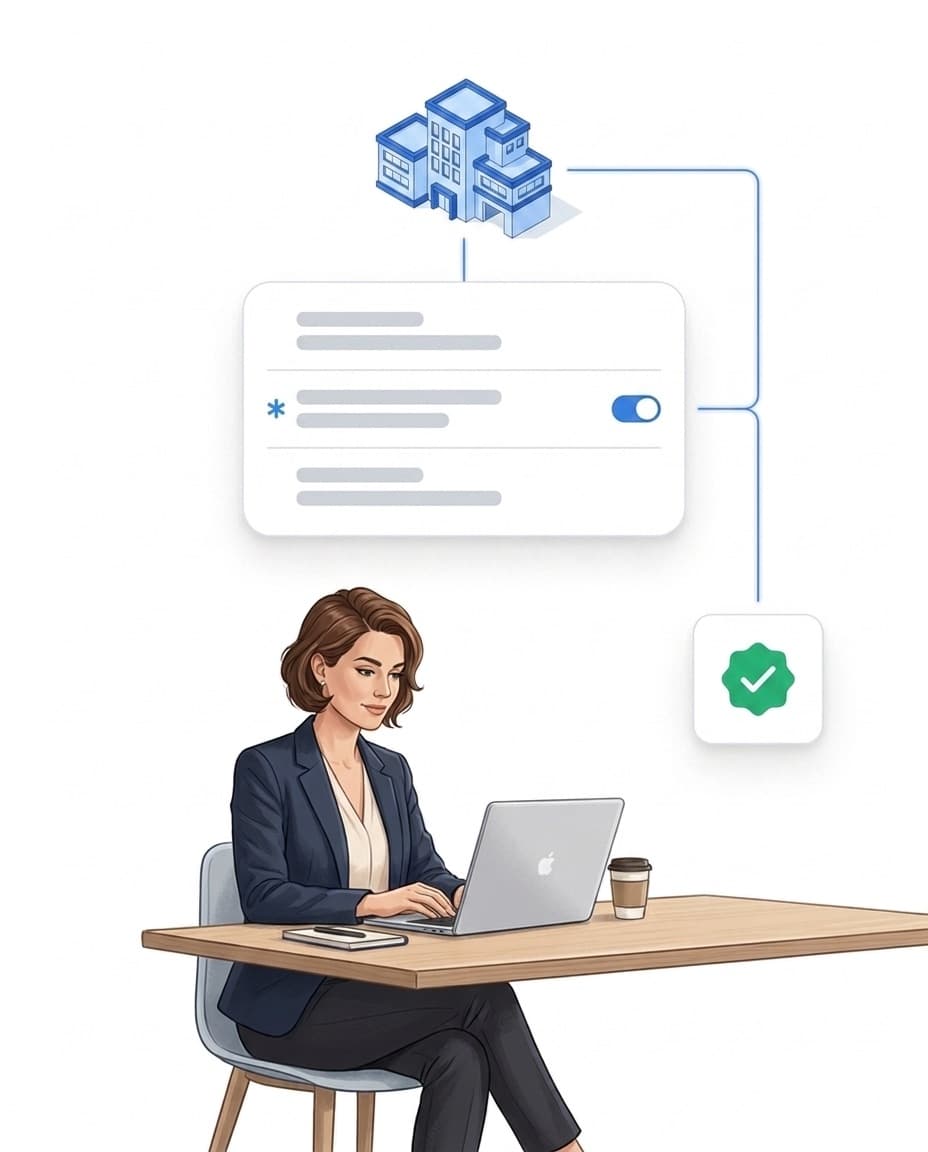
On the employee profile: there automatically, validated cleanly
From the moment it is created, every field appears on all employee profiles – existing and new. On save, LiteLog validates type and requirement.
- ✓Required is enforced: an empty required field blocks saving – the detail is never missing again.
- ✓Type-checked: numbers, dates and select options are validated before they are stored.
- ✓CSV import included: when importing employee data, additional details are adopted automatically as custom fields.
- ✓Permissions respected: who may view and edit profiles is controlled by the permission management.
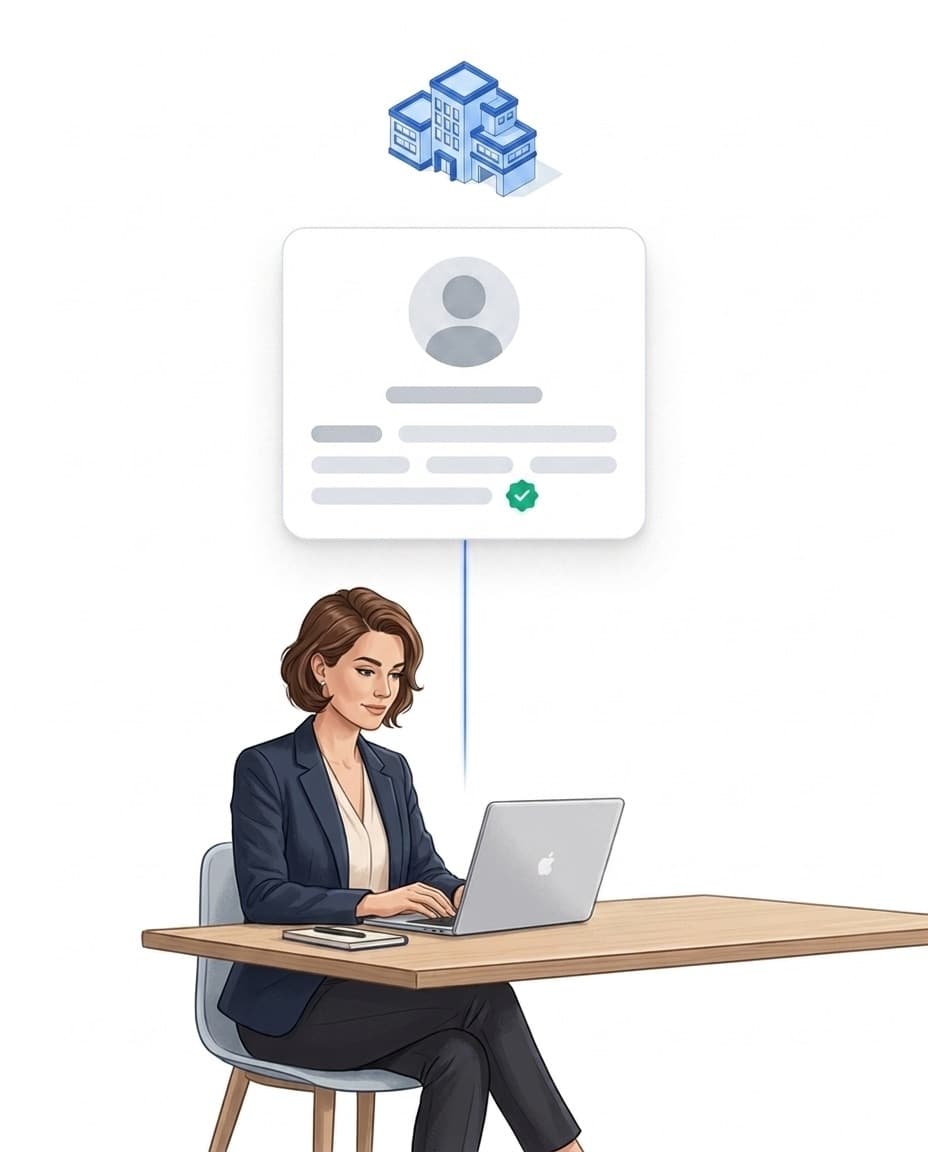
In lists, exports and on the evacuation list
Custom fields do not stay stuck on the profile – they keep working in your reporting.
- ✓Employee list: custom fields appear as columns in the personnel overview in the portal.
- ✓Time-tracking reports: exports of time tracking include the fields per person.
- ✓Evacuation list: on the digital evacuation list up to five fields serve as additional identity columns.
- ✓Archive instead of delete: archived fields disappear from the views, the values are preserved – reactivate the field and they are back.
FAQ
Frequently asked questions about custom fields (FAQ)
What are custom fields?
Custom fields are self-defined data fields on the employee profile. You decide once in Settings which details your operation needs – for example guard licence number, driving licence class or issued keys – and from then on the field appears on every profile with a consistent label.
Which field types are available?
Six: text, multi-line text, number, date, select list with fixed options, and yes/no. Select lists prevent typos because only the defined values can be chosen.
Can I enforce required fields?
Yes. Fields marked as required must not be left empty on save – so an important detail like the guard licence number is never missing again.
Can I change a field's type later?
Not once values have been stored – existing entries would become invalid. In that case archive the field and create it again with the right type.
What happens when I archive a field?
The field disappears from profiles, lists and exports – but the stored values are preserved. If you reactivate the field later, the values are visible again.
Do custom fields appear in reports?
Yes. Custom fields appear as columns in the employee list, in time-tracking exports and on the digital evacuation list.